
How to Download TikTok and Twitter/X Videos to Your Computer (2026 Guide)
TikTok and Twitter/X push billions of short clips every day. Neither platform offers a "download to MP4" button on desktop — TikTok's official download route stamps a bouncing watermark over the video, and Twitter has no download option at all. Most third-party "TikTok downloader" sites are ad farms that hammer you with popups and sometimes serve malware.
This guide covers how to grab the original MP4 from both platforms using FlowPick, capturing the exact video stream your browser already loaded — no re-encoding, no watermark added by the downloader, no server round-trip.
What Format Do TikTok and Twitter/X Use?
Unlike Bilibili or Netflix, which chop video into hundreds of HLS/DASH segments, short-video platforms keep things simple: a single progressive MP4 file.
- TikTok web (
www.tiktok.com): the player loads an MP4 via a blob URL backed by a progressive download from TikTok's CDN. The<video>element holds the source. - Twitter/X (
x.com/twitter.com): video tweets serve MP4 files fromvideo.twimg.comURLs. These are direct progressive downloads — no manifest, no segments.
What this means for you: there's no segment-merging step. FlowPick grabs the MP4 in one shot, the file is already a valid video, and the download is usually done in seconds.
If you're coming from a segmented-stream guide like the HLS/M3U8 download tutorial, the workflow here is noticeably simpler.
Prerequisites
- Chrome, Edge, or Firefox (Chrome/Edge recommended for the most stable File System Access streaming writes)
- FlowPick extension installed — see the installation guide if you haven't done this yet
- The video must actually play in your browser. If it's behind a login wall or geo-block, FlowPick can't conjure it out of thin air — it captures what your browser renders.
Step-by-Step: Downloading a TikTok Video
Step 1: Open the TikTok Video Page
Go to www.tiktok.com and find the video you want. You don't need an account for public videos, but if the creator set their account to private, you'll need to log in first.
Step 2: Play the Video
Click the video to start playback. This is non-negotiable — FlowPick's sniffer hooks into media requests that fire when the player loads. A paused, un-played video has no stream to sniff.
Let it play for 2-3 seconds so the request fires.
Step 3: Click the FlowPick Icon
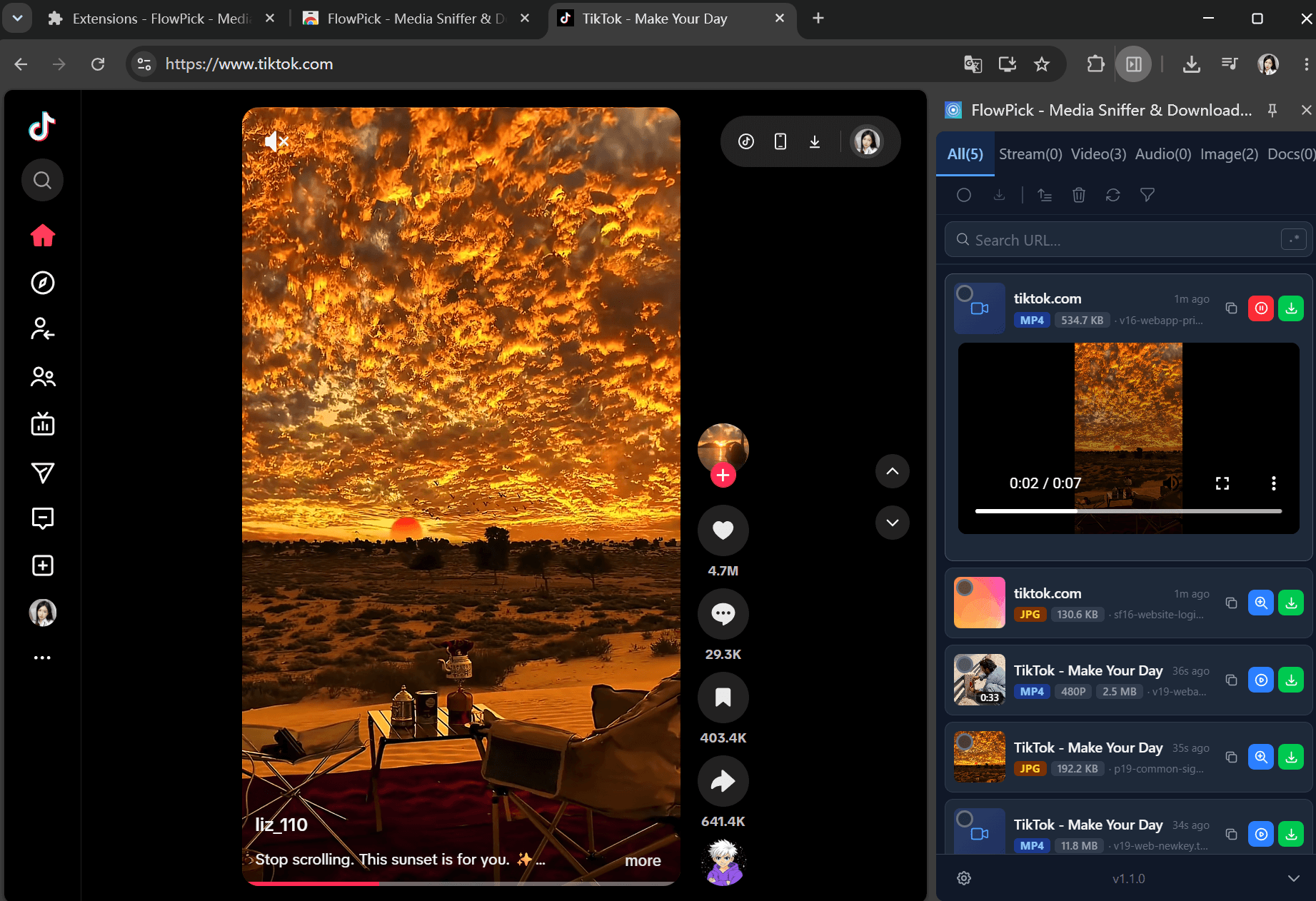
Click the FlowPick extension icon in your browser toolbar. The popup lists all media FlowPick detected on the current page.
For a typical TikTok page, you'll see:
- One MP4 video entry (the actual content)
- Occasionally a secondary smaller MP4 (a thumbnail preview or ad placeholder — ignore it, pick the larger file)
Step 4: Pick the Video Entry
Click the MP4 entry. FlowPick shows file size and duration so you can confirm it's the right video before committing.
Step 5: Name and Download
Give the file a name, set thread count (default 2 is fine for short videos — these files are small, threading barely matters), and click Pick.
FlowPick streams the MP4 directly to your download folder. A 30-second TikTok usually finishes in under 5 seconds.
Step 6: Verify
Open the file in any player. If it plays and has audio, you're done.
Step-by-Step: Downloading a Twitter/X Video
The workflow is nearly identical.
Step 1: Open the Tweet
Go to x.com and open the tweet containing the video. Click the video to play it for 2-3 seconds.
Step 2: Open FlowPick
Click the extension icon. You'll see an MP4 entry sourced from video.twimg.com. That's your video.
Step 3: Download
Pick the entry, name the file, click Pick. Done.
For Twitter GIFs: they're actually short MP4 files under the hood, not real GIFs. FlowPick captures them the same way.
A Note on TikTok Watermarks
This is the question everyone asks: does FlowPick remove the TikTok watermark?
FlowPick captures whatever MP4 stream the TikTok web player loads. The web player typically loads a clean version without the bouncing watermark — the watermark is added by TikTok's mobile app download feature, not baked into the web stream.
So in most cases, the file you get from FlowPick has no TikTok watermark. But:
- Some creators upload pre-watermarked videos. FlowPick can't un-watermark those.
- Some regions/AB-test groups see a watermarked web stream. If yours does, FlowPick will faithfully capture the watermarked version — it's not a watermark remover, it's a stream capturer.
If watermark removal is your only goal, this isn't the right tool. If you want the original MP4 your browser played, this is.
Common Issues
"No streams detected" on TikTok
Usually means the video hasn't started. Try:
- Manually clicking play (don't rely on autoplay — some browsers block it)
- Waiting 3-5 seconds for the buffer to kick in
- Refreshing the page and playing again
If the video is inside an embedded TikTok iframe on another site, right-click the iframe → "Open frame in new tab" → try FlowPick there.
"No streams detected" on Twitter/X
Twitter's player is aggressive about lazy-loading. Make sure the video is actually playing — not just visible. Scroll the tweet into full view, click play, wait 2 seconds, then open FlowPick.
Downloaded file has no audio
Rare for these platforms, but happens when:
- The video was muted when playback started (some browsers suppress audio stream init on muted videos)
- An ad or popup interrupted playback
Fix: refresh, make sure the video is unmuted and playing with audio, re-detect.
File is tiny or corrupt
You probably picked the thumbnail/preview entry instead of the main video. Re-open FlowPick and pick the entry with the larger file size.
TikTok says "content not available in your region"
Geo-blocked content. FlowPick captures what your browser receives — if TikTok refused to serve the video to your region, there's nothing to capture. A VPN is the only workaround, and that's outside FlowPick's scope.
Twitter video won't play without logging in
Some sensitive-content tweets require login. Log in to X first, then play the video, then use FlowPick.
Batch Downloading
If you want to grab multiple videos from a TikTok profile or Twitter timeline, FlowPick's batch download feature handles this — switch to the batch mode, play through the videos on the page, and FlowPick queues them up. See the batch download guide for the workflow (it covers images, but the queue mechanic is the same for video).
Browser Compatibility Notes
- Chrome / Edge: best experience. File System Access API enables streaming writes with no size limits.
- Firefox: works, but falls back to blob-based saving. Fine for short videos (under 500MB), not ideal for hours-long content.
- Safari: not supported due to missing extension APIs and FSA support.
For the full browser compatibility matrix, see the browser compatibility docs.
Legal Note
FlowPick captures what your browser already rendered. Both TikTok and Twitter/X terms of service restrict redistribution of downloaded content. Downloading for personal offline viewing is generally fine in most jurisdictions; redistributing someone else's copyrighted video on another platform is not. If you're archiving your own uploads or saving a clip for personal reference, you're on solid ground. If you're planning to re-upload someone else's content as your own, that's between you and the original creator — FlowPick is just a tool.
Recommended Reading
- How to Download M3U8/HLS Streams: A Complete Beginner's Guide — the longer counterpart to this guide, covering segmented streams
- What Is DASH Streaming? MPD File Explained — if you later need to handle DASH-based platforms
- How to Batch Download Images from Any Website — batch queue mechanic applies to video too
- FlowPick vs. Video DownloadHelper — how FlowPick compares to traditional downloader extensions