
How to Save a Live Replay Before It Expires
Tools used, in order
What you end up with: A local copy of the replay, in a container your player and editor both accept.
A live replay is the least durable form of video on the internet. Platforms keep it for a week, a month, or until someone changes a setting, and then it is gone. If you need it later — for a report, a highlight, a compliance record — "later" is usually after it has been deleted.
This guide is about capturing it while it exists, and about the fact that a replay is a harder source than an ordinary video.
Why a replay is not just a video
Three things differ from a normal video-on-demand file, and each one changes what you do.
There is a deadline. Replays expire on a platform-defined schedule. You cannot download it again next month, so the copy you make is the copy you keep. That changes the quality bar: getting a usable file once matters more than getting the optimal file.
The stream is more segmented. Live delivery cuts segments far shorter than a VOD file does, often two to six seconds instead of ten. A three-hour replay can be several thousand segments. Segment count is the main reason a capture fails partway.
The bitrate moves. Live encoding adapts to what the encoder can push, so quality varies through the recording. A replay of a stream that struggled at the twenty-minute mark will look worse there, and no post-processing fixes it.
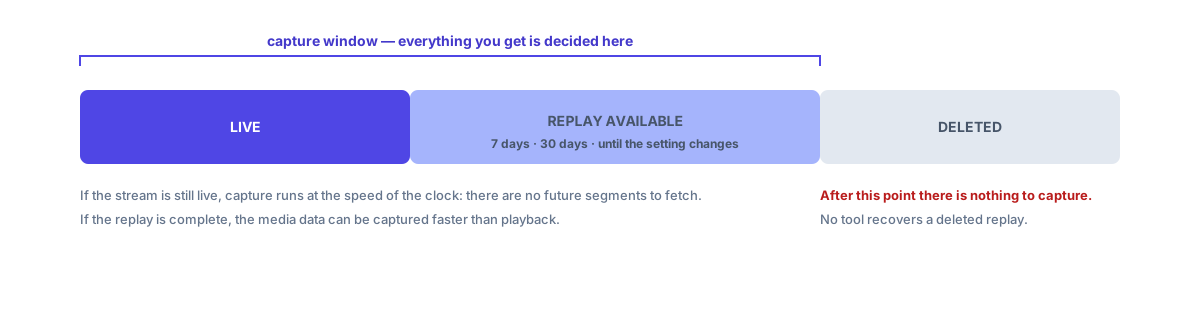
The replay window is the only time this workflow is possible, and its length is not yours to decide.
Step 1: Check what the page actually gives you
Before recording, spend thirty seconds looking at the Network panel. Filter for m3u8 and mpd.
- A playlist appears. The stream is unencrypted and listed. You have a choice between capturing the media data and recording the screen; capturing is better because it copies the encoded streams rather than re-encoding a picture of them.
- No playlist, but the video plays. The page may be using Media Source Extensions to feed segments the player fetched itself. The recording tool can take the media data in that case, which still avoids re-encoding.
- Segment requests but no playlist, and responses look like noise. DRM. Stop here. Capturing ciphertext produces a file that will not play, and this guide is not about that.
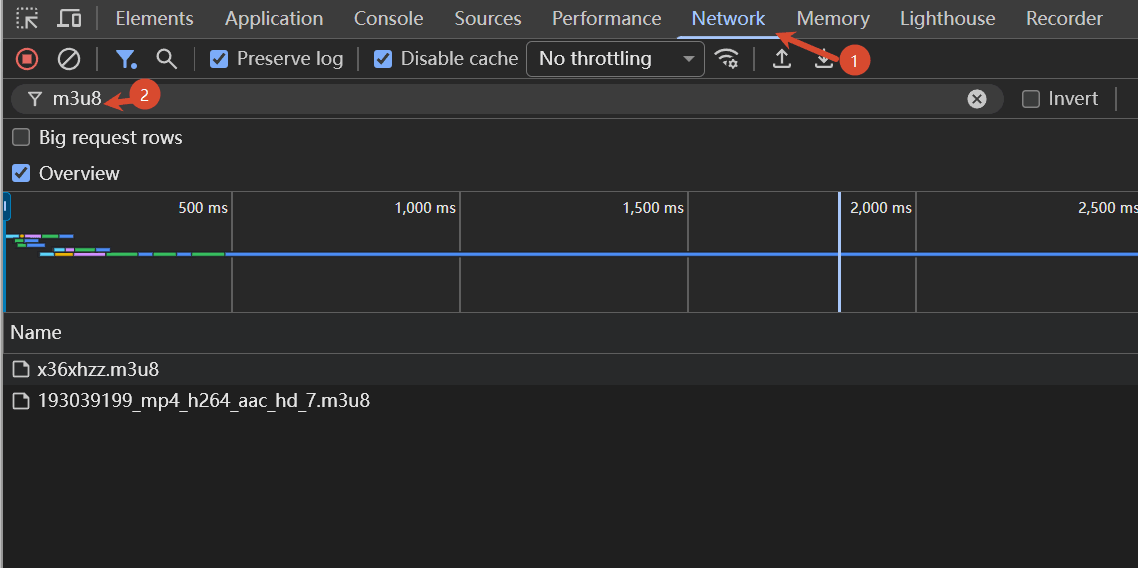
Existing project screenshot of the public Mux test stream. Filtering for m3u8 shows playlists; use ts or m4s to inspect segment requests separately.
Step 2: Capture, and decide about the tail
Open the replay in the player, click the FlowPick extension icon, and choose its recording control. Select MSE buffer mode when available; the extension opens the recording tool with the active session. Opening that URL directly shows instructions rather than starting a recording.
Two practical notes:
Do not record faster than real time if the source is a live stream. A replay that is still being written has no future segments to fetch. If the replay is complete, capturing the media data can run faster than playback; if it is still live, you are bounded by the clock.
Leave the tab alone. Capture runs in the page. Switching tabs is fine in most browsers, but closing, sleeping the machine, or letting the browser discard the tab ends the recording.
If the replay is four hours long and you only need one match, consider a different approach: record only during the part you need. It is less work than capturing everything and cutting later, and it halves the chance of hitting a segment failure three hours in.
Step 3: Fix the container, not the picture
What comes out of a capture depends on what went in. Live streams are commonly delivered as fragmented MP4 or as MPEG-TS.
If the file plays everywhere, skip this step. If it does not, read it first with Video Info, then decide:
- TS container, H.264 + AAC codecs. Convert with TS to MP4. This copies the streams into a better-supported wrapper; it does not re-encode, so it is quick and loses nothing.
- Already MP4 and still unplayable. Inspect the codec and file integrity before choosing a fix. A codec your player cannot decode needs a re-encode; the TS remux cannot change it. Check the container and codec guide before spending time on it.
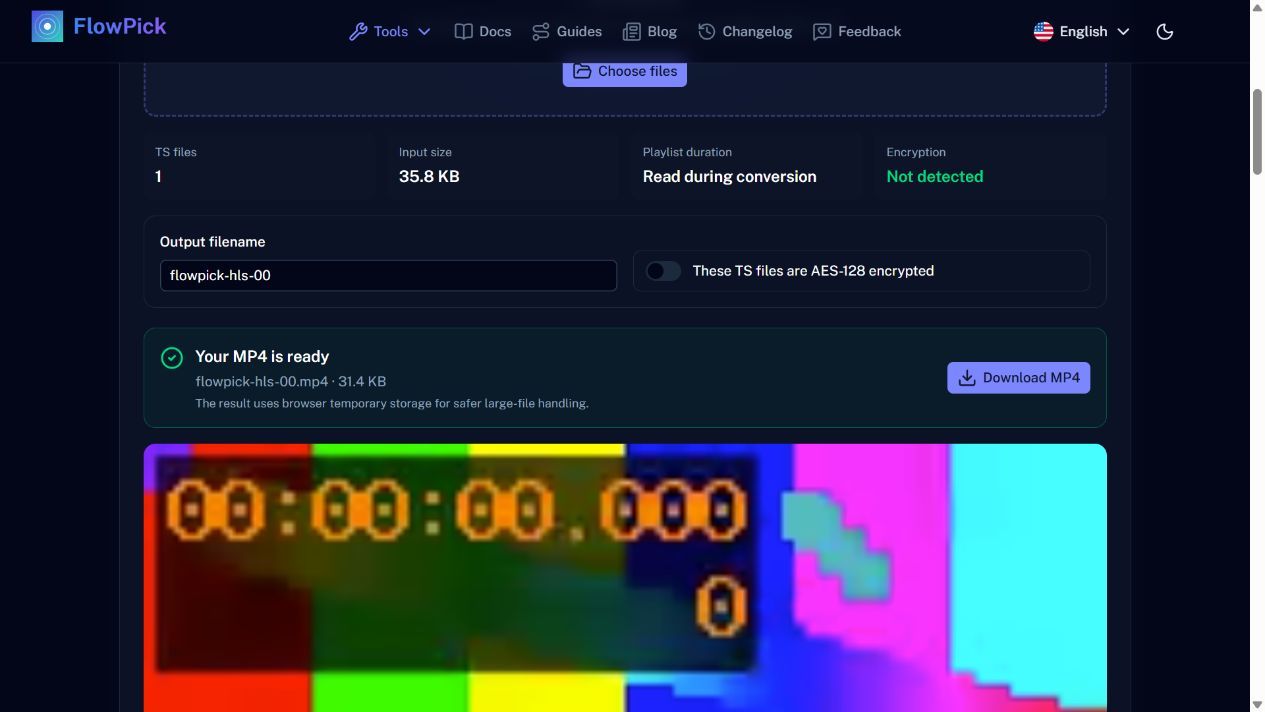
Actual remux of the generated TS sample: 35.8 KB input → 31.4 KB MP4. Container overhead changes file size; verify duration and tracks in Video Info.
A note on sizes that surprises people: a TS to MP4 remux often produces a smaller file even though nothing was re-encoded. TS carries packet overhead and padding that the MP4 container does not need. A 15% drop is normal and does not mean quality was lost.
Step 4: Cut it down before you archive it
A three-hour replay of a match, a conference, or a live stream is usually watched once. Keeping all of it costs disk and makes it hard to find the part that mattered.
The video trimmer cuts by timestamp. Two habits worth having:
- Keep the original until the cut is verified. Trimmed output is a new file; the capture is the only copy of something that may no longer exist online.
- Cut on chapter boundaries where the platform provided them, not mid-sentence. It makes the result easier to name and easier to find later.
Where this goes wrong
The capture stops around the segment limit. Several thousand segments is a lot of memory. Split the job: record the first half, then the second. Two files that combine cleanly beat one file that failed at 80%.
Audio and video drift apart in a long capture. This is a live-encoding artefact more than a tool failure, and it gets worse with duration. Shorter captures reduce it; there is no reliable post-fix in the browser.
The replay expires mid-capture. Nothing recovers the missing tail. This is the one failure that argues for capturing early rather than waiting for a convenient moment.
The result plays but has no audio. The audio was a separate track that did not get picked up. Re-capture with the audio track selected, or capture the audio separately with the audio downloader if the source has a separate audio playlist.
What you end up with
A local file that no longer depends on the platform's retention policy, in a container that opens in a player and an editor. Trim it down, name it with the date and the event, and check that it plays from a cold start — some captures play from cache but fail on a fresh load, and you want to find that out now rather than in six months.