
Batch Download
Select media in the extension and use the batch queue to configure tasks and save them into an authorized folder.
Select multiple resources in the extension, then configure quality, audio tracks and concurrent tasks in one queue. Completed files go into the folder you authorize.
Basic Operations
Select Multiple Resources
- Open FlowPick on the source tab and switch to the resource type you want.
- Tick the items to save. Check the count on the blue download button, then click it. Supported video, audio, and stream items open in the queue.
Save images from a gallery
- Open the full-size image on the source page if it offers one, then switch to Image in FlowPick. Use the funnel icon to filter the list. Compare the displayed dimensions and open the image preview to check that you selected the full-size resource the site loaded.
- Tick the images and click the blue download button. The browser saves images directly.
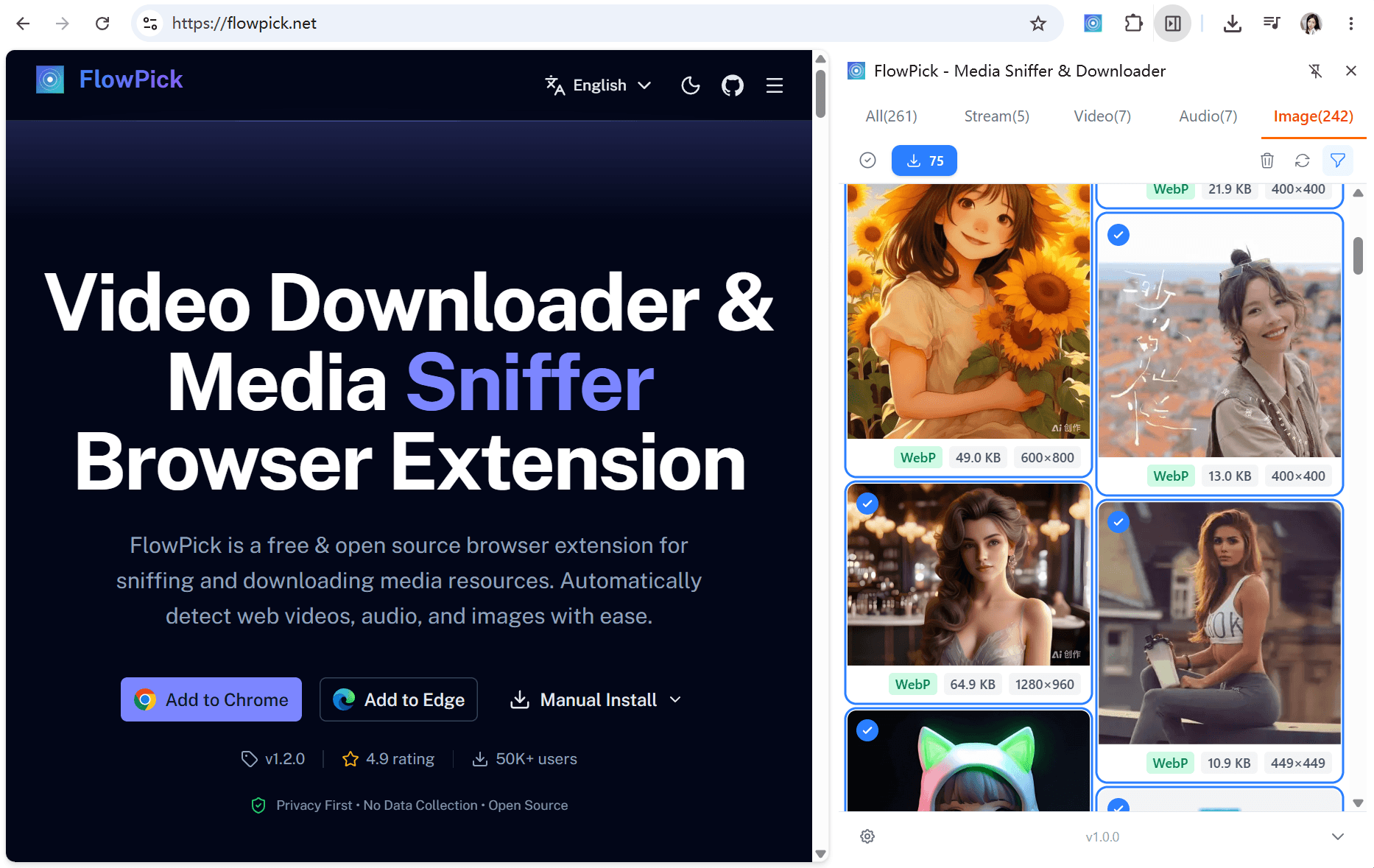
To select all, filter the list first, then use the checkbox at the top.
Download Behavior
- In desktop Chrome or Edge, open Download settings → Choose save folder and authorize a writable folder.
- Set the shared quality, audio track and concurrent tasks. Open an item’s settings only if it needs a different choice.
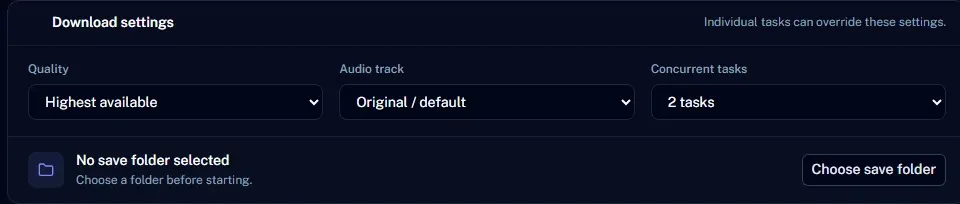
- Click Download when the button shows the number of tasks. Use Pause queue to stop new tasks from starting. Active downloads keep running.
If a row says Source access expired, reopen the source and submit the item again. If it says Excluded, read the reason on that row. Keep the queue tab open. Reloading restarts unfinished items.
If the queue cannot finish writing a file, see saving troubleshooting.