
Configuration Reference
The gear in the extension opens settings for detection and filtering. The web downloader’s Download Settings apply to the current job.
Detection and filters
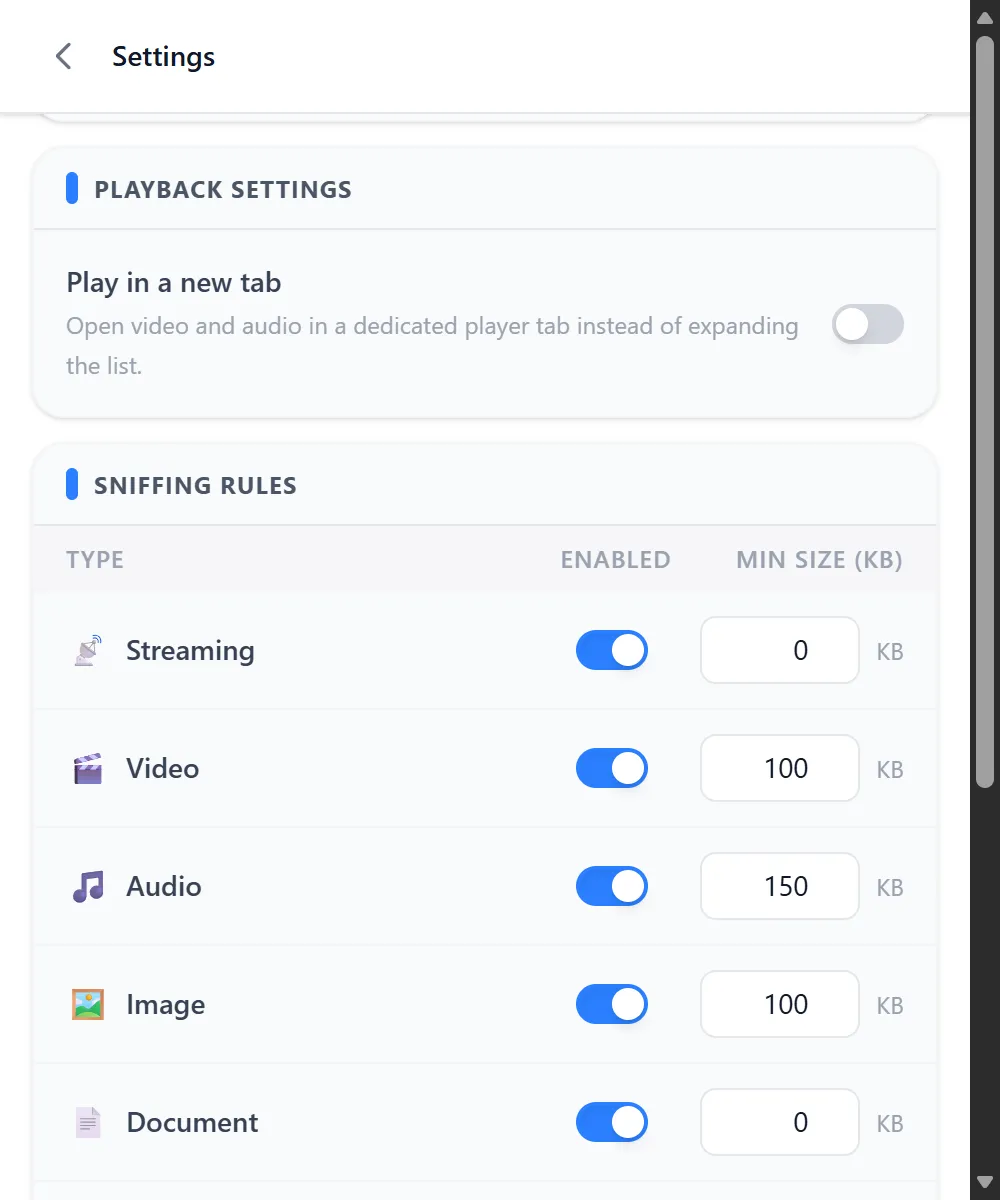
Open FlowPick, click the gear at the bottom, then find Sniffing Rules. Each resource type has a switch and a minimum size. The current extension defaults to 100 KB for ordinary video. After changing the limit, reload the media on the source page and check the list again.
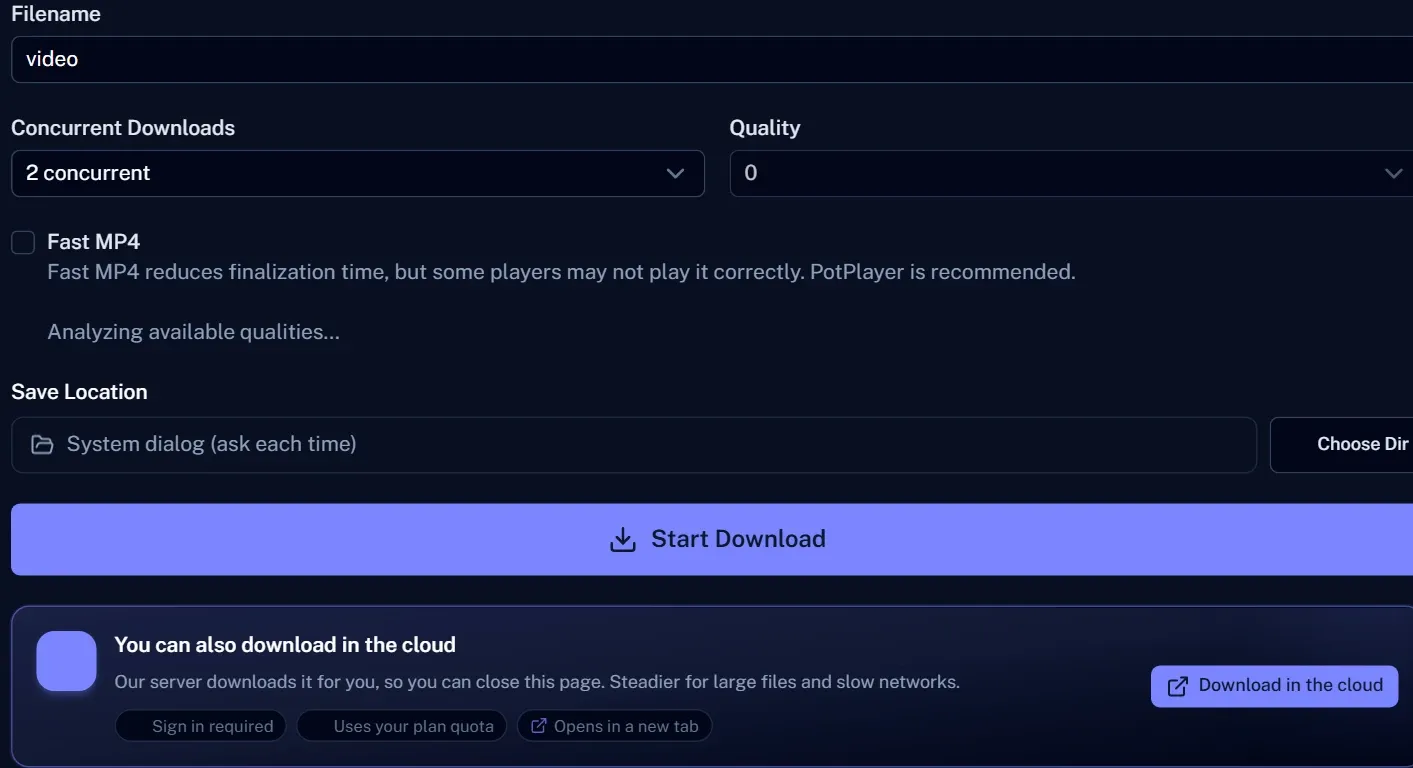
Download settings
| Setting | What to choose |
|---|---|
| Concurrent downloads | Start with the default. If the source repeatedly throttles requests or returns HTTP 429, lower the number. |
| Quality | Choose from the levels the manifest offers. If there is only one, leave it as is. Choose an audio track too when the source lists audio separately. |
| Fast MP4 | Leave it off on the first run. Enabling it can shorten the final merge, but some players may have trouble opening the file. |
Whether an MP4 plays still depends on its codecs. The HLS sample saves as MP4 by default. If your downloader offers TS, check that your player or next tool can open it before choosing it.
Where files are saved
In desktop Chrome or Edge, use Choose Dir in the downloader to authorize a folder for direct saving. If the browser asks for permission again, select the folder again.
For manual saving, wait for processing to finish and click Save to Disk. The browser can hold the result temporarily until you save it. If saving stalls or you cannot find the file, follow the saving checks.
Keyboard shortcuts
Open chrome://extensions/shortcuts in Chrome or edge://extensions/shortcuts in Edge. If FlowPick lists an editable action, click its edit icon, enter a key combination, and try it on the source tab. If there is no editable action, open FlowPick from the browser toolbar.
Usage Guide
Complete usage guide for FlowPick, covering both extension and online tool methods, from basic detection to advanced download strategies.
Video Sniffing
How the FlowPick extension finds the video a page actually loads: direct files, M3U8/HLS playlists and MPD/DASH manifests, and where the download and decryption happen.