
Troubleshooting
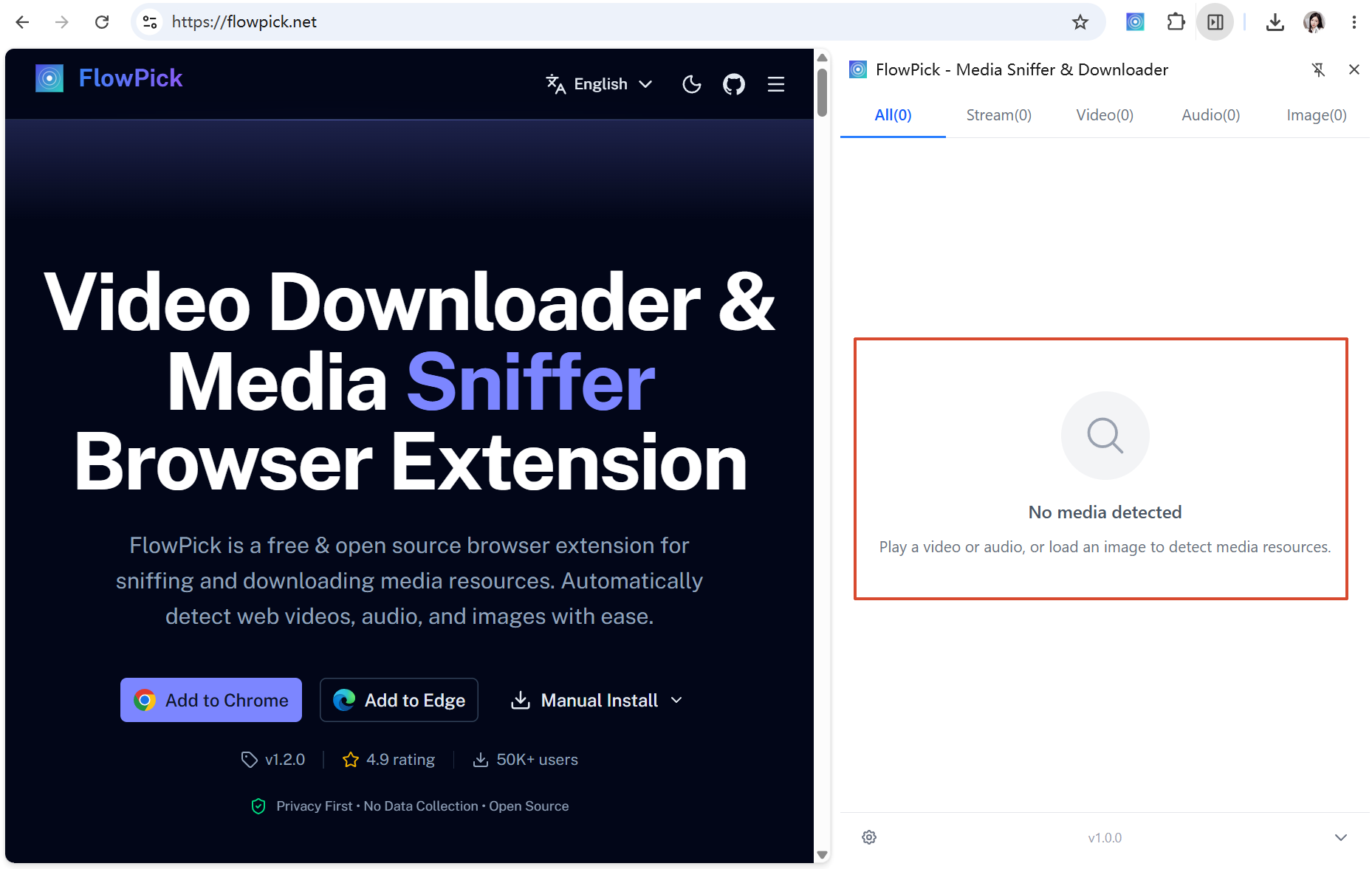
FlowPick finds no media
- Open the source tab and play the video or audio for a few seconds. For images that load as you scroll, scroll until the missing image is visible.
- Open FlowPick on that tab. Start in All and clear any URL search or filters. If the list stays empty, reload the source page and play the media again.
- If FlowPick still shows nothing, check that the extension is enabled and permitted to read data on that site. The permission lets the extension see media requests made by the page. See installation and browser permissions for details.
The download will not start or stops midway
Open the original page and confirm the media still plays. If it does, select the item again in FlowPick so the downloader gets a current URL. If the download stops after a few segments or shows HTTP 429, try one item at a time and lower the concurrent request count if the downloader offers that setting.
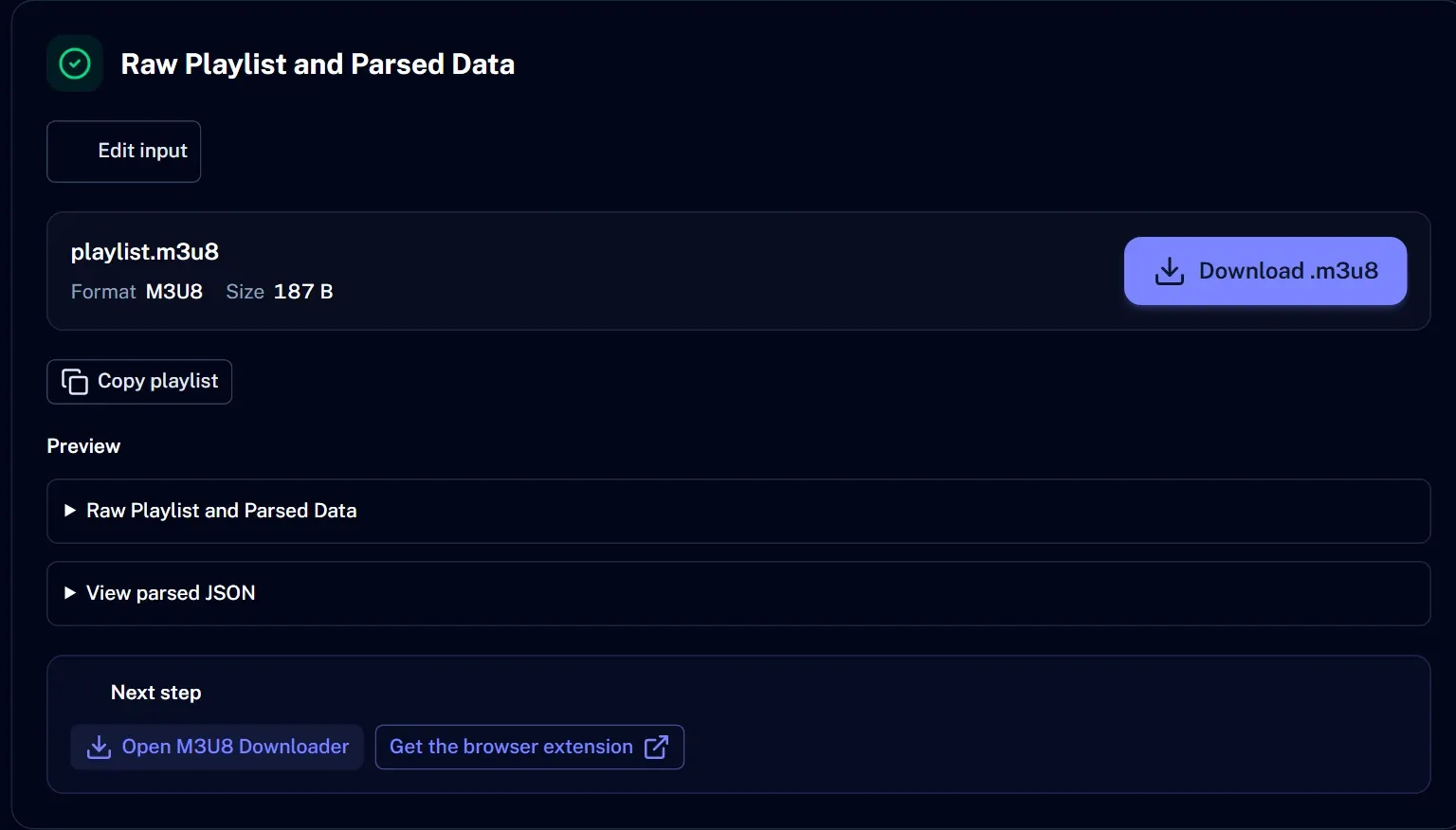
For HLS, use the FlowPick test playlist in the HLS Analyzer. It should show two segments, four seconds and no encryption. With FlowPick enabled, choose Open M3U8 Downloader below the result. A successful test download narrows the problem to the original source or how that download is configured.
| What you see | What to check |
|---|---|
| Downloader asks for the extension | The HLS and DASH downloaders need FlowPick installed and enabled. An analyzer result only confirms the manifest could be read. |
| HTTP 401 or 403, or Source access expired | Reopen the source in the same browser session and select the item again. The server may still require access or reject requests from outside its player. |
| CORS error in an analyzer | The source server may block cross-origin requests from the web tool. If you already have the manifest text, paste it into the analyzer to inspect it. |
| DRM warning | FlowPick does not bypass Widevine, PlayReady or FairPlay. HLS AES-128 is a separate case and requires a supported stream and authorized access to its key. |
The file is ready but will not save
For the batch queue in desktop Chrome or Edge, open Download settings → Choose save folder and grant write permission. If the browser asks again, select the folder again even if its name is still displayed. In a single-file tool, use the browser save dialog or the page’s save action when the result is ready.
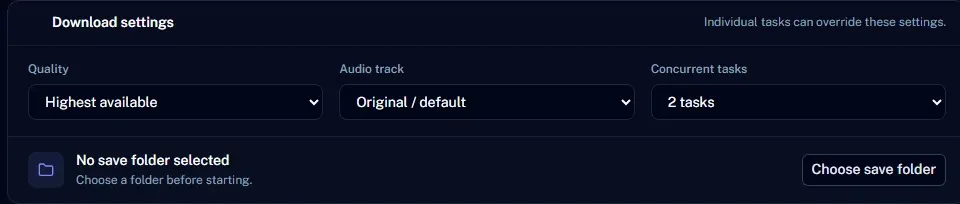
For a large job, keep the tab open until the file is saved and try one task at a time. Check free disk space and any browser storage warning. Note whether progress stopped while fetching, merging, or writing the file. The stage matters more than a fixed file-size threshold.
The file will not play or has no sound
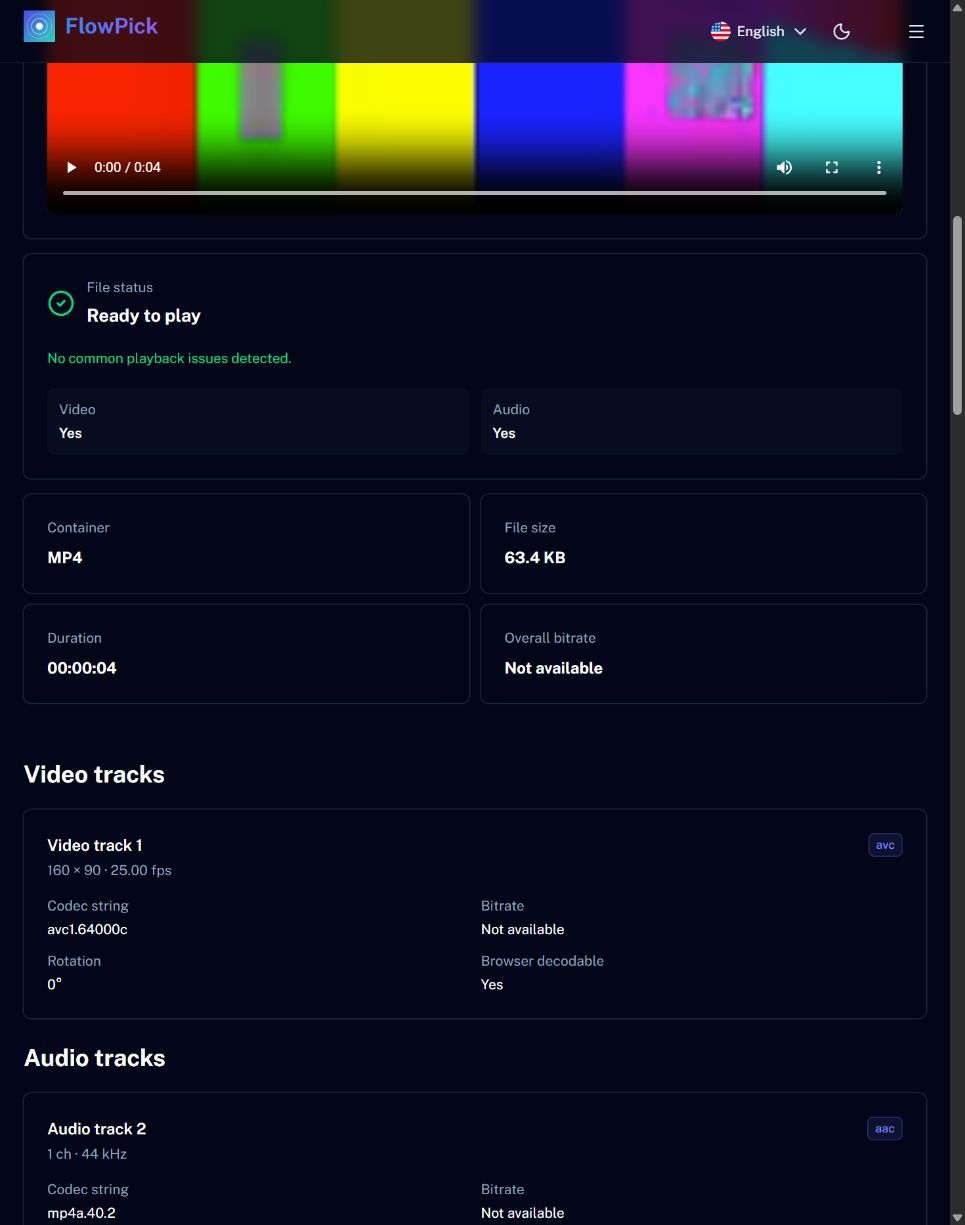
- Try opening the file in Video Info. Check File status, the duration, and whether both video and audio tracks are present.
- If the audio track is missing from a DASH download, go back to the download settings and select an audio track if the source offers one.
- If both tracks are present, check Browser decodable under each track. Changing the extension to
.mp4does not fix an unsupported codec. If the duration is much shorter than expected or the analyzer cannot read the file, try downloading the source again.
A shortcut or recording stops working
- Shortcut: Check the browser shortcut settings for the current binding and any conflicts.
- Recording: Confirm the browser still grants permission for the selected capture source. Keep the source and recording pages open until you stop and save the recording.
Report a problem
In Feedback, include the tool you used, browser and extension versions, what you clicked before the failure, and the exact error. Say whether the built-in sample worked. If you attach a screenshot or sample, remove cookies, tokens, private filenames, and signed URL parameters first.